



For New ProctorU Users
If you don’t already have a ProctorU account, your first step is to sign up.
Register Now
For Existing ProctorU Users
Already have an account? Add a new enrollment with Elsevier – HESI.
Add New Enrollment
Create an Elsevier Evolve Account
Create a student account to access HESI exams and resources.
Create Account

Secure Browsers
Download the Guardian Secure Browser and the Elsevier Secure Browser. Install both before exam day to avoid launch delays.
Download Guardian
Technical Equipment Requirements
Make sure your device meets the requirements for remote proctoring through the ProctorU Platform.
Review ProctorU RequirementsAgreement Already in Place?
You're in the right spot. Continue below to register your instructor account, get trained on the platform, and prepare your test-takers.
Test Your EquipmentFind a quiet, well-lit space with four walls where you can be the only person in the room.
You will be asked to show the whole room that you are testing in. If you are uncomfortable showing your bedroom, please choose a room that you are comfortable showing.
Review a list of locations that are not appropriate for taking an exam. Things to prepare for:
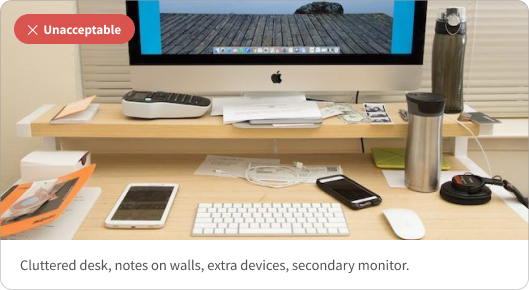
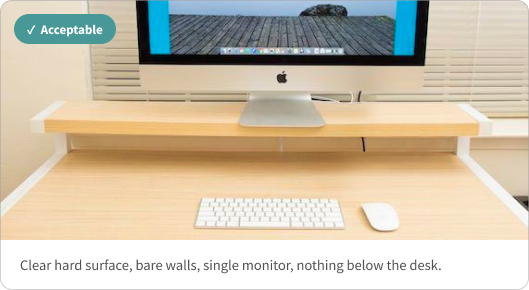
Desk: Clear everything except what is needed for your exam. All books, calendars, notes, drinks, snacks, handheld devices, etc. must be removed.
Below Desk: There cannot be anything below your desk.
Surrounding Walls: Remove all bulletin boards, cork boards, notes, calendars, etc. from the walls in front of you.
You may only use one monitor during your exam. If you have a second monitor, you will need to unplug it and remove it from your testing area.
Online Calculator Only
No graphing, scientific, or other handheld calculators are allowed during the exam. The HESI platform has a built-in calculator that can be used.
Handheld White Boards Only
Scratch paper is not allowed. Students must use a handheld whiteboard or 1 sheet of paper inside a transparency sleeve with a dry-erase marker that is to be erased at the end of the exam prior to disconnecting from the ProctorU Platform.
No headphones, earplugs, or earbuds are allowed. You will also be asked to remove watches, hats, hoodies, sunglasses, etc. Note that religious head coverings are permitted. Other items may be allowed if you have an approved accommodation request that is listed on your test-taker profile prior to the scheduled appointment.
All test-takers, regardless of exam type, will be required to present a valid government-issued photo ID at the time of their exam.
You may only use the Guardian Browser, the Elsevier Secure Browser, and the Proctor Chat Applet during the exam.
Unless you are taking an oral exam, speaking aloud will not be permitted without a pre-approved accommodation. We will make exceptions if you need to ask your proctor a technical or procedural question during your exam.
It’s important to understand what you are and are not allowed to do during an exam. Review this list of unpermitted actions that will result in flagged behavior and/or proctor intervention.
Elsevier allows students to take bathroom breaks during their exams. When you come back from a break, you will have to complete another room scan with your proctor before resuming your exam.


Make sure you have all usernames and passwords needed for your exam.
This includes your ProctorU credentials as well as your Evolve login information. Hint: Your Evolve username is not your email address.

Reboot your computer just before your exam session.
We recommend rebooting your computer before your exam session. This helps eliminate some common technical issues and gives you a fresh start without any unnecessary windows open or applications running.

Have your cell phone, handheld white board, and ID ready.
You will be required to show your cell phone, government issued ID, and handheld white board during the exam launch process.

Confirm your testing space and attire is appropriate.
Review the exam rules on this page to make sure your room, desk, walls, and ear/head coverings are compliant. Be prepared to show your entire testing space to your proctor.

Expect a 20-minute start.
Before your scheduled appointment, log in to your ProctorU account and look for the countdown timer. When the timer reaches 0:00:00, it will change to a Start Exam button. A typical exam launch takes 20 minutes and does not count against your exam time allotted. Watch the Test-Taker Experience video linked above to have a clear understanding of the exam launch process.

Acknowledge recording.
To be proctored remotely, you'll need to accept a set of terms and conditions. One condition is that you and your screen will be recorded for the entire exam. These recordings are shared with Elsevier and your institution so they can review your exam session.

Use the restroom.
It may sound silly, but use the restroom before you connect with ProctorU so you are comfortable throughout your exam.

If you get disconnected, don’t stress.
Unexpected disconnections happen occasionally. If yours was caused by a temporary internet issue, just repeat the steps you used to start your exam—but this time you'll see a "Reconnect" button instead of "Begin Session." If you can't find it, reach out to ProctorU Support through the Guardian Browser or call 855-772-8678.

ProctorU Support Articles
Browse help articles →
ProctorU Live Chat Support
Chat with us now →